FTP Connect Screen
When you connect and process to an FTP server, the following screen is displayed:
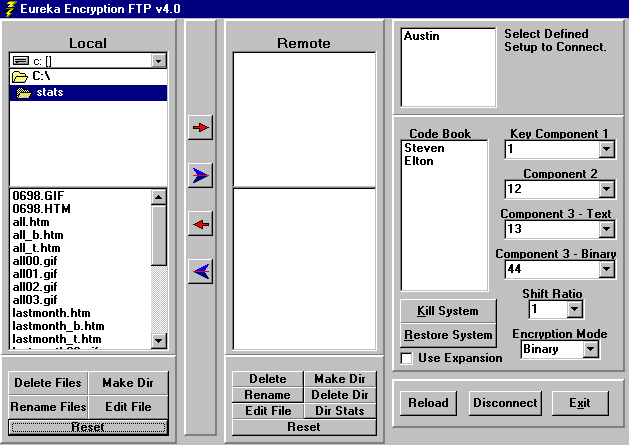
We'll examine each of the areas in detail, but first notice the Local (your machine)
area on the left and the Remote area in the middle. The directory and file
structures are presented here and work identical to one another.
Before we can do anything with the server, we have to connect with it. The upper
right hand corner contains the connection selector.
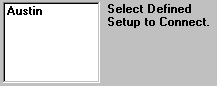
Click on the FTP name you defined in the FTP Setup screen. If you are not
already connected to the Internet, the dial-up screen will pop up and connect
you to the Internet. Then it will connect to the FTP server defined in the
setup.
Now let's go over the options on both the Local and Remote areas:
The Local Options
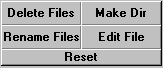
Delete will delete the selected file(s) from the local machine.
Rename will produce a panel to type in the new filename and rename it
on the local machine.
Make Dir will create a new directory on the local machine.
Edit File will edit the selected file(s) using the FTP Editor, which is
described at the end of this document.
Reset will remove any selected file(s) from being selected in case of
error.
The Remote Options
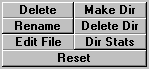
Delete will delete the selected file(s) from the remote server.
Rename will produce a panel to type in the new filename and rename it
on the remote server.
Make Dir will create a new directory on the remote server.
Delete Dir will delete the directory from the remote server.
Dir Stats will display file information from the remote server such as
filesizes, file dates, etc.
Edit File will edit the selected file(s) using the FTP Editor, which is
described at the end of this document. This automates the normal FTP
process of first downloading a file, then going to another application to
edit it, then returning to the FTP program to upload it back. This function
will replace the file back on the FTP server if you Save it.
Reset will remove any selected file(s) from being selected in case of
error.
Other Options

Sometimes you might want to Reload the directory listings from the
remote server. You can also Disconnect and then connect to
another ftp site, or click on Exit to return to the main menu
screen.
Now let's examine the transfer and systems area controls:
The Transfer Buttons

This will transfer the selected file(s) from the local to the remote server
in the normal manner.

This will transfer the selected file(s) from the remote server to the local
in the normal manner.

This will encrypt the selected file(s) on the local then transmit them to
the remote server.

This will transfer the selected file(s) from the remote server then decrypt them
and place them on the local.
Note that when encrypting and decrypting functions are performed, the
actual file transmitted is in encrypted form. Encryption and Decryption takes
place before or after the transmission depending on the type performed
and according to the settings in the System area described next.
The System Control Files Area
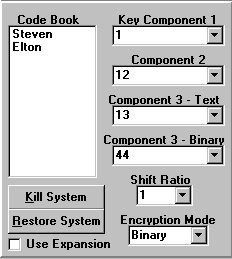
Consult the System Control Files for information on
the controls in this section. Any encryption or decryption will be performed
according to the settings here. It is important to realize that extreme care
should be taken to make sure you double check this area before you initiate
any of the cryptive transfer buttons described above.
The Editor Controls
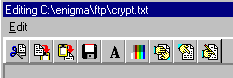
 Cut
Cut
This will delete the highlighted text and copy it to the clipboard.
 Copy
Copy
This will copy the highlighted text and copy it to the clipboard.
 Paste
Paste
This will insert text from the clipboard into the document.
 Save
Save
This will save the current data.
 Fonts
Fonts
This will allow you to alter the display font and character color.
 Background Color
This will allow you to alter the background color.
 Encrypt
This will bring up the encryption setup screen and encrypt the text data. See
the screen below for more information.
 Decrypt
This will decrypt the encrypted data in the editor.
 Find
Find
This will provide searching capibilities for the text.
The Editor Encryption Setup Screen
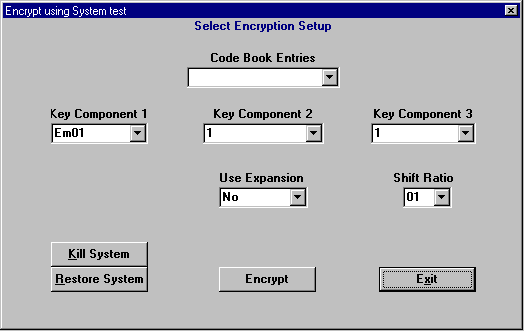
Here you select the components for encrypting or decrypting the editor's text
data. See the System Control Files section for more information on some of
the Key Components represented here. If you have a code book setup, you can select
it from the top combo box. You can kill your current system and restore a
different one by the Kill System and Restore System buttons. Exit will cancel
the cryption process. Decryption is identical to this screen, except for the
wording of the panel and the Encrypt/Decrypt label for the middle lower button.
Return to Help Menu
Copyright © 1998-2002 Data Security Solutions, Inc. All rights reserved.
All registered marks and trademarks mentioned in this site
are the property of their owners.